


PDF Reader: Master Plus
3.444.00 Reviews
App Specs
- Version
- 1.0.2
- Updated On
- License
- Free
- Downloads
- 100,000+
- Developer
- Kunshan Shengqichang Electromechanical Equipment
- Categories
- Tools
- Platform
- Android
Screenshots
 Analysis by AppCompare
When I choose a PDF app, I care less about a long feature list than about whether I can find a document, read it comfortably, and get a small task done without wrestling with menus. PDF Reader: Master Plus is aimed at that everyday job, with tools for reading and working with PDFs on a phone. I’d consider it when I want more than a basic file viewer, but I would still match its tools to the documents I handle rather than assume every reader needs the same extras.
Choosing the right kind of PDF reader
A useful first question is what you actually do with PDFs. If you mainly open a bill, ticket, or set of instructions and close it again, a simple viewer may be enough. If you regularly mark up reading material, search long documents, or turn other files into PDFs, a broader tool can save a few separate steps. The trade-off is that a more capable app can feel like more than you need when all you want is to read one page.
I’d also think about where your files live. A reader that fits a local-file routine may feel inconvenient if you move between devices, while a cloud-connected workflow is useful only if you already keep documents in those services. Before committing to a new app, it helps to try one ordinary task: open a document you use often, find a passage, and return to the page you need. That quick check tells you more than browsing a feature menu.
What stands out for everyday document work
As a free tools app, this reader brings several common PDF jobs together: viewing, annotation, page bookmarking, in-document search, file conversion, and text-to-speech. I like that mix for people who move between reading and acting on a document. Instead of opening one app to read and another to make notes, the stated toolkit gives you a chance to keep those steps in one place.
A practical use is reviewing a study handout or a work document during a commute. I’d search for a heading or a key term first, bookmark the page I need to revisit, then add a brief annotation while the context is fresh. The useful habit is to keep notes focused: mark only the passage that needs attention and use a bookmark for the page you’ll return to. That makes a document easier to scan later than highlighting whole sections indiscriminately.
Text-to-speech is another option for moments when looking at the screen is inconvenient, such as listening to a document while doing a quiet household task. I wouldn’t treat it as a substitute for checking tables, diagrams, or formatting visually, because spoken text can’t convey every layout detail. For prose-heavy material, though, listening can be a handy first pass; I can then return to the screen for anything that needs closer review.
Where a simpler or more specialized option may fit
This app is not automatically the best choice for every PDF routine. If you only view occasional files, the reader already built into your device or a lightweight viewer may be less distracting. If your work depends on advanced document editing, team review, or a tightly controlled office workflow, a dedicated specialist tool may be a better fit. I’d choose based on the task that causes the most friction, not on the assumption that the app with the most tools is always superior.
Worth Reading Before You Choose

EA SPORTS FC Mobile 26 Is a Bigger Football Game, but It Takes Time

Flipboard Shows What News Apps Must Do Beyond the Feed

Switching to Android Auto Means Rethinking Your Driving Routine

Google Calendar Makes a Crowded Week Easier to Manage

Ludo King Makes the Most of the Minutes Between Plans

Baby Panda World Brings Quick Play to Modern Phones, but Its Game Library Feels Busy
Conversion deserves a little care, too. Turning a Word document or image into a PDF can make sharing easier, but I’d inspect the result before sending it, especially when spacing, tables, or image placement matter. A quick page-by-page check can catch layout changes that are easy to miss from a thumbnail. Keep the original file until you’re satisfied with the PDF, so a conversion issue doesn’t leave you without an editable copy.
How it fits into a file routine
The app is from Kunshan Shengqichang Electromechanical Equipment, and it has an average rating of 3.4 from around 300 ratings, with more than 100,000 installs. Those figures suggest that people have tried it, but I wouldn’t use popularity alone to decide whether it suits my workflow. I’d pay more attention to whether its everyday actions feel dependable on my own device and with the kinds of documents I open.
For a realistic routine, imagine receiving a PDF agenda before a meeting. I’d open it, search for the topic I’m responsible for, bookmark that page, and annotate the point I need to raise. If the agenda arrives through a cloud service, the listed Drive and Dropbox integration may help me reach it without first moving it manually. Afterward, I’d revisit the bookmark rather than scroll through the entire file again. This is where a combination of search, bookmarks, and notes can be more useful than any one tool by itself.
That workflow also points to a sensible switching test. Before making this your default reader, try it with a short document and a longer one, then check whether your annotations and bookmarks are easy to find when you reopen them. If you rely on cloud files, test the route you actually use rather than assuming every folder will behave exactly as it does in a separate cloud app. A few minutes spent checking those basics can prevent the annoyance of moving your whole document habit and discovering that one key step feels awkward.
Who is likely to appreciate it
I can see this being a reasonable choice for students who want to search and mark reading material, people who review routine work documents on a phone, and anyone who occasionally needs to make a PDF from another file type. The age rating is Everyone, and the app is free, so the decision is mainly about whether its tools match the task rather than a purchase commitment. It runs on Android 10 or later, which is worth checking against your device before you plan to make it part of your routine.
On the other hand, I’d skip it if I only need to glance at a PDF once in a while, or if my work requires a specialized editing and approval process. I’d also avoid relying on any single mobile reader as the only copy of an important document. Keep originals in their usual location and treat annotations as a working layer, especially when a file is part of a formal process. That is a practical safeguard, not a criticism unique to this app.
First Impressions
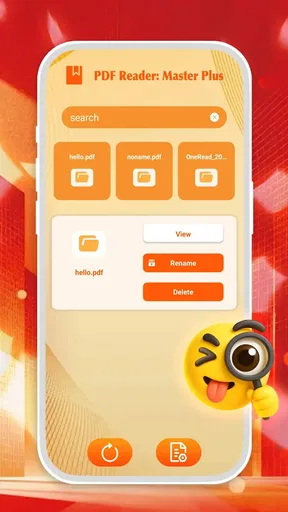
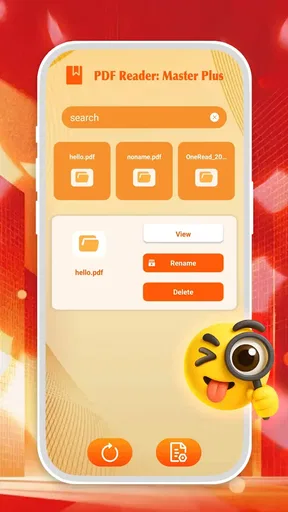
When I first downloaded PDF Reader: Master Plus, I was hit with a sleek, user-friendly interface. It’s got that minimalist vibe that I personally love. No unnecessary clutter, just the essentials laid out in a way that even your grandma could figure out. The app opens up with a neat dashboard that lets you dive right into your recent files or explore the menu for more options.
Features Galore
This app isn’t just about viewing PDFs. Oh no, it’s got a whole arsenal of features. You can easily annotate documents, which is perfect if you’re like me and love scribbling notes or highlighting important bits. The annotation tools are intuitive and don’t require a degree in rocket science to use. Plus, there’s a night mode for those late-night document marathons that won’t strain your eyes.
Another standout feature is the app’s ability to convert different file types into PDFs. Need to share a Word doc or an image as a PDF? No problem. This app handles it like a pro, and the conversion process is fast and smooth. And let’s not forget the nifty text-to-speech function. Perfect for when you’re on the go and need to "read" a document without actually reading it.
Navigation and Usability
One of the things that can make or break an app for me is navigation. With this reader, everything is just where you’d expect it to be. Swipe gestures make flipping through documents feel natural, and you can bookmark pages for easy access later. I also appreciated the search function, which lets you find specific words or phrases within a document in seconds.
The app also integrates seamlessly with cloud services like Google Drive and Dropbox. This means you can access your files anytime, anywhere, without having to download them directly to your device. Super handy if you’re juggling multiple devices or on the move a lot.
Performance and Reliability
Now, let’s talk performance. I was pleasantly surprised by how smoothly the app runs. Even with large documents, there’s no lag or crashing, which is a huge plus in my book. The developers have clearly put a lot of effort into optimizing the app for different devices, and it shows. Whether you’re using a high-end smartphone or a budget tablet, the experience remains top-notch.
Battery consumption is also pretty reasonable. I didn’t notice any dramatic drain while using the app, even during extended sessions. This is crucial for someone like me who’s always on the go and doesn’t have time to tether myself to a charger.
Final Thoughts
So, is PDF Reader: Master Plus worth the download? Absolutely. It's packed with features that cater to both casual users and PDF powerhouses. Whether you’re reading up on the latest research, reviewing work documents, or just flipping through some e-books, this app has got you covered. It’s user-friendly, reliable, and does its job without any fuss. If you haven’t given it a try yet, I’d say it’s high time you did. You can thank me later!
Ready to dive into PDF bliss? Check it out on your preferred app store and transform the way you handle documents on your device.
Pros
- User-friendly interface for easy navigation.
- Supports a wide range of file formats.
- Fast loading times for large documents.
- Advanced annotation tools for editing.
- Offline access to saved documents.
Cons
- Ads can be intrusive during use.
- Limited cloud storage integration options.
- Some features require in-app purchases.
- Occasional lag with complex files.
- No built-in text-to-speech feature.
FAQs for PDF Reader: Master Plus
What are the main features of PDF Reader: Master Plus?
PDF Reader: Master Plus offers a variety of features including annotation tools, text highlighting, and the ability to fill out forms. It supports multiple file formats, offers cloud integration, and provides a seamless reading experience with customizable viewing options. Additionally, it includes advanced search capabilities and a user-friendly interface.
Is PDF Reader: Master Plus available for both Android and iOS?
Yes, PDF Reader: Master Plus is designed for both Android and iOS platforms. Users can download it from the Google Play Store for Android devices and the Apple App Store for iOS devices. The app is optimized to offer a consistent experience regardless of the operating system.
Can I use PDF Reader: Master Plus offline?
Absolutely. PDF Reader: Master Plus allows users to access and read their documents offline. You can open and annotate files without an internet connection, making it convenient for use in areas with limited connectivity. However, cloud-based features will require an internet connection.
Does PDF Reader: Master Plus support cloud storage services?
Yes, PDF Reader: Master Plus integrates seamlessly with popular cloud storage services like Google Drive, Dropbox, and OneDrive. This feature enables users to easily access and manage their documents across different devices, ensuring that their files are always up-to-date and accessible from anywhere.
Is there a free version of PDF Reader: Master Plus, or is it paid?
PDF Reader: Master Plus offers both free and paid versions. The free version includes basic features suitable for standard use, while the paid version unlocks advanced functionalities such as premium annotation tools, enhanced cloud integration, and ad-free experience. Users can choose based on their needs and budget.


